 Kai
Members and roles
Inviting people, what each role can do, and handing a workspace over.
Settings → Members.
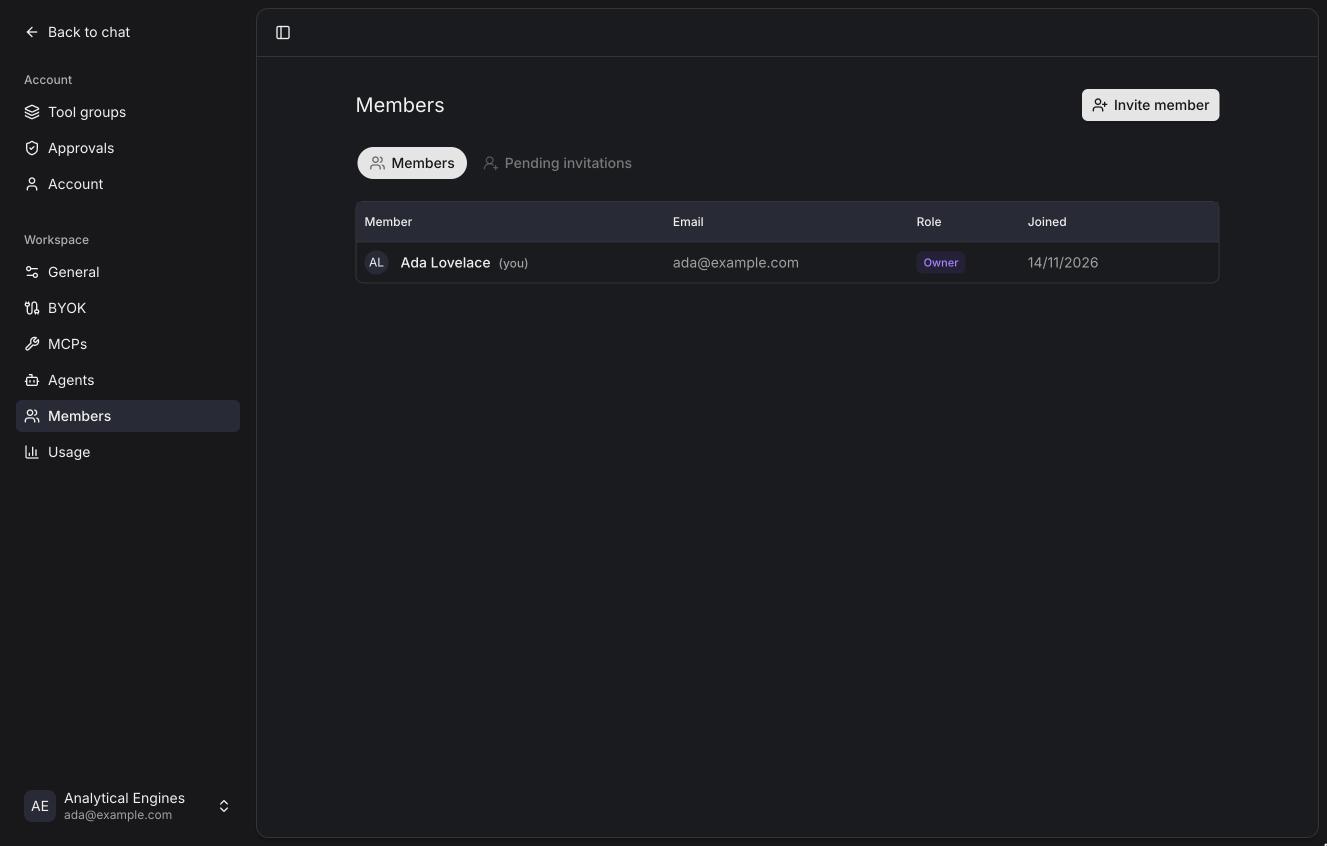
Roles
| Owner | Admin | Member | |
|---|---|---|---|
| Chat, use the workspace's models and tools | ✓ | ✓ | ✓ |
| Fill in their own MCP credentials, sign in to MCP servers | ✓ | ✓ | ✓ |
| Create their own agents and tool groups | ✓ | ✓ | ✓ ¹ |
| See their own usage | ✓ | ✓ | ✓ |
| Manage keys and models (BYOK) | ✓ | ✓ | |
| Add and configure MCP servers, set shared credentials | ✓ | ✓ | |
| Create and edit workspace agents | ✓ | ✓ | |
| Invite and remove members, change roles | ✓ | ✓ | |
| See everyone's usage | ✓ | ✓ | |
| Rename the workspace, set its utility model | ✓ | ✓ | |
| Transfer ownership, delete the workspace | ✓ |
¹ Unless the instance sets KAI_MEMBER_AGENTS=false.
Nobody can read another person's chats, not even the owner.
Inviting people
Invite member, enter their email and pick a role.
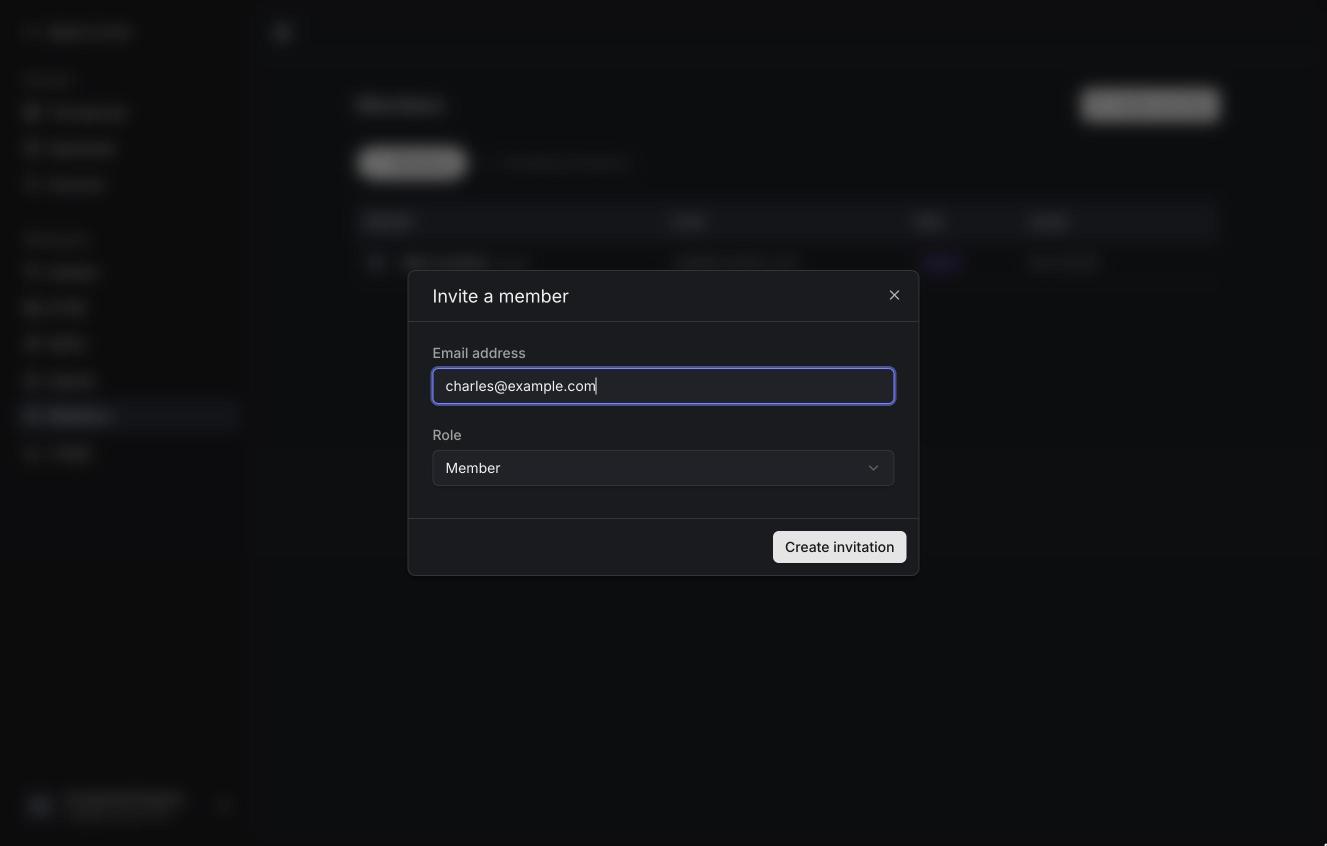
With email delivery configured, Kai emails the invitation. Without it, Kai shows a link to send them yourself. The link works only for that email address and expires in 7 days.
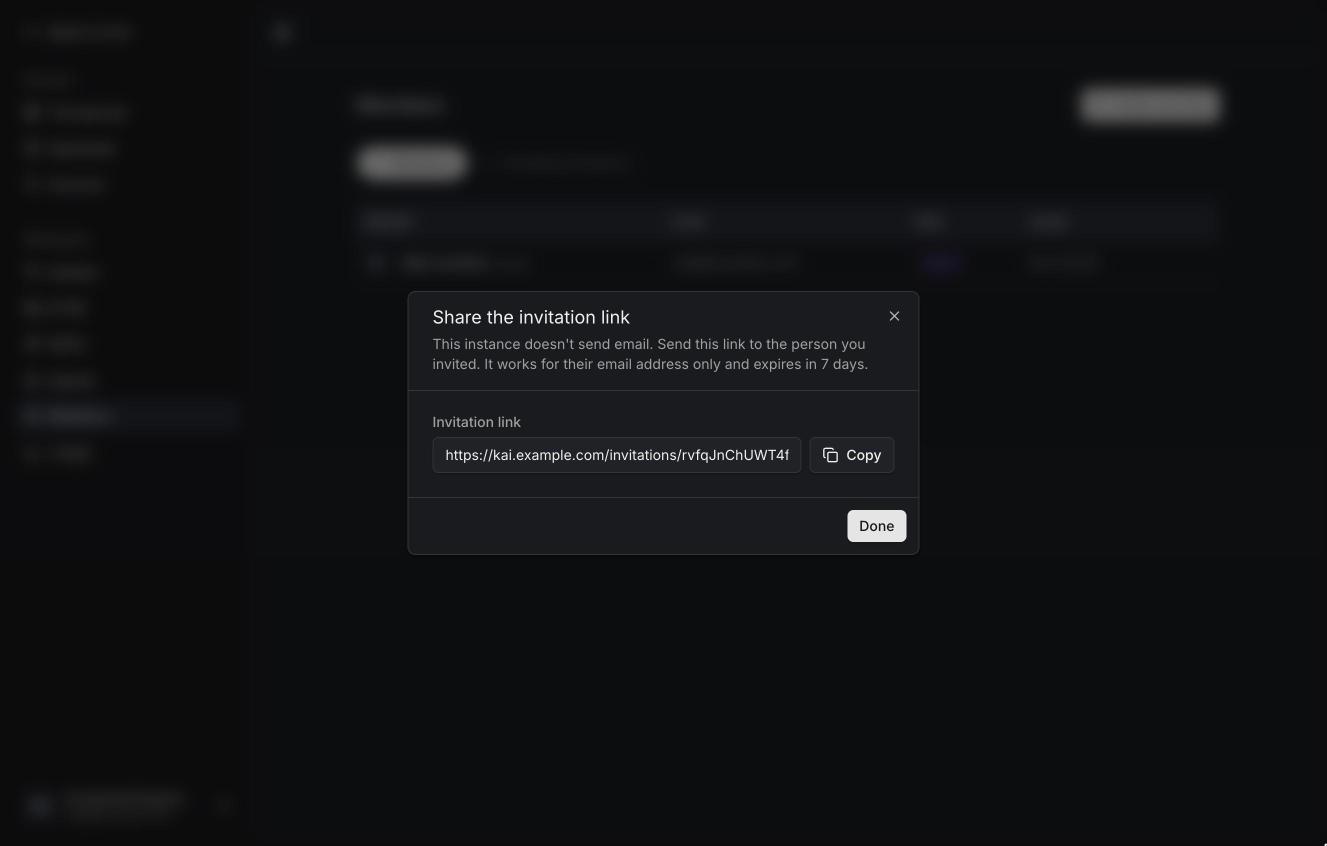
When the person opens the link they sign in, or sign up with that address (an invitation lets them sign up even when sign-up is otherwise invite-only), and accept. Pending invitations are listed under Pending invitations, where you can copy the link again or cancel them.
Changing roles and removing members
Use a member's row menu. Removing someone keeps their chats out of reach (they were private) and signs them out of the workspace.
Transferring ownership
A workspace has one owner. The owner's row menu on another member has Transfer ownership; the old owner becomes an admin. An owner who wants to leave has to transfer first.
Deleting a workspace
Settings → General → Delete workspace (owner only). It deletes everything in the workspace for every member: chats, files, keys, MCP servers, agents and usage. There is no undo.