 Kai
Chat
Models, reasoning effort, attachments, web search, branches and long conversations.
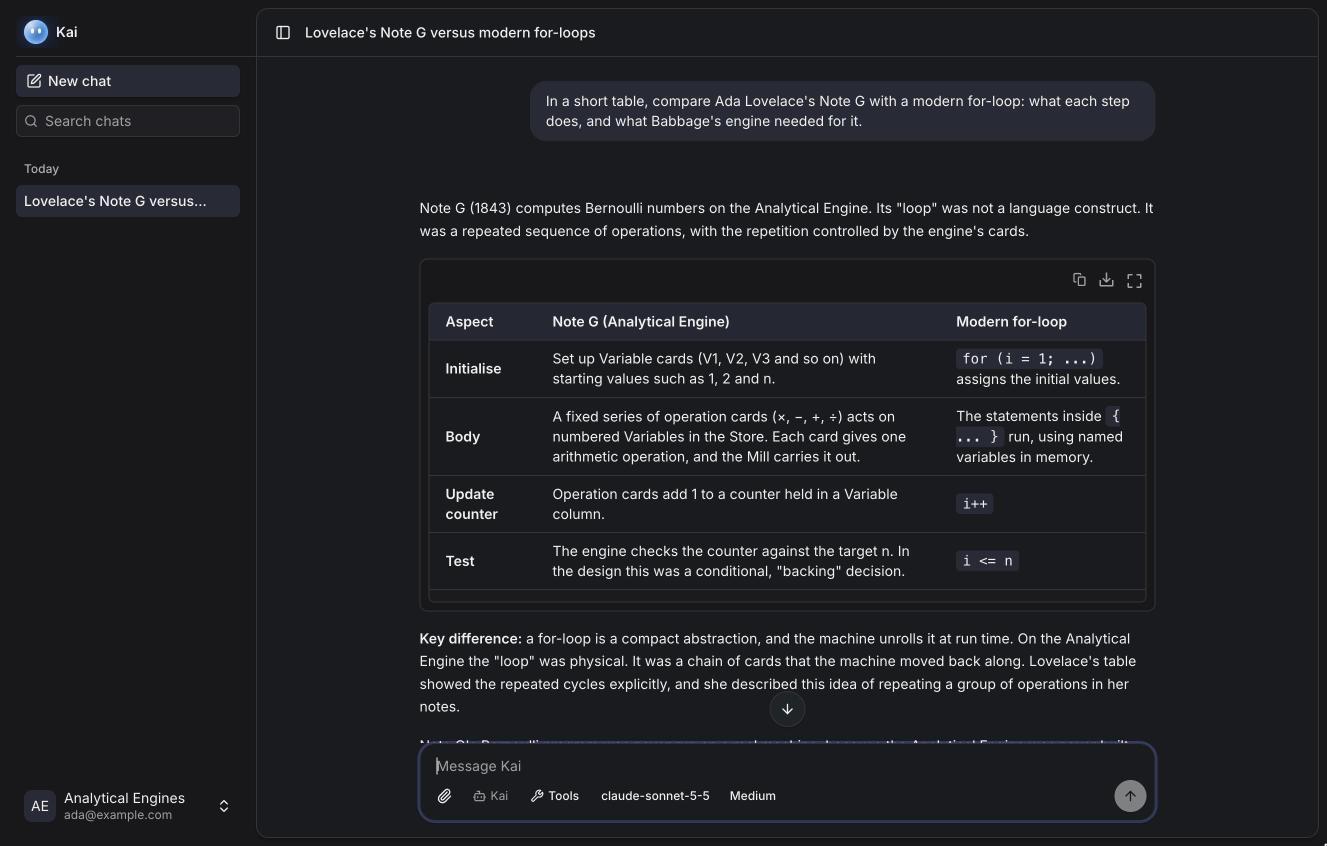
The composer
Below the message box, from left to right:
| Control | What it does |
|---|---|
| Paperclip | Attach files (see below). You can also paste or drop them. |
| Agent | The agent the chat runs with. |
| Tools | Turn MCP servers and tool groups on for this chat. |
| Model | The model, grouped by key. Type to search. |
| Effort | How hard the model thinks, for models that reason. |
Enter sends; Shift+Enter adds a line. While a reply is streaming, the send button becomes Stop.
Picking a model
The picker lists the models switched on in BYOK,
grouped by key. Type to filter: gpt 6 finds gpt-6-luna, and Enter picks
the first match. An agent can limit which models a chat may use.
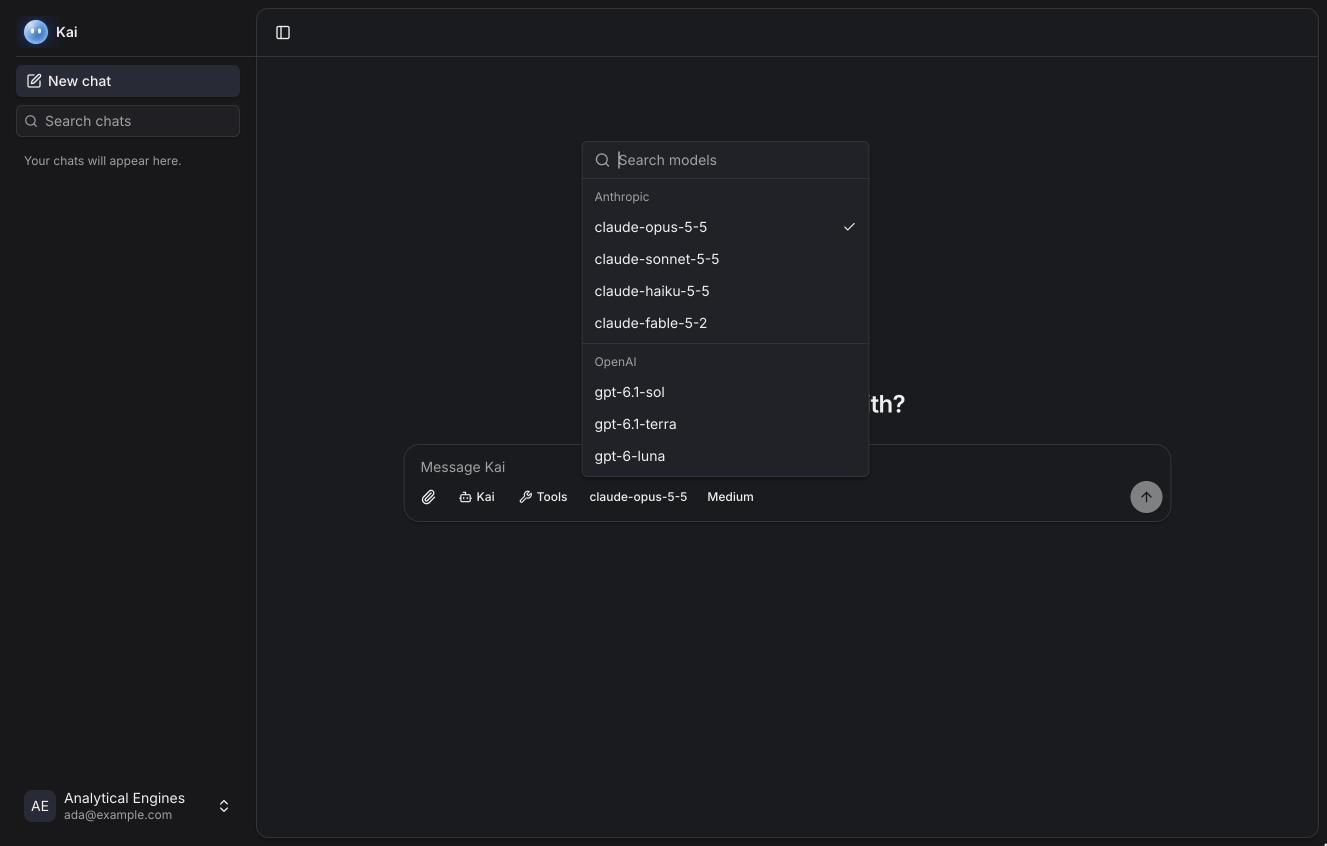
A new chat starts with your last model. Changing the model in a running conversation works at any time; the next request re-reads the conversation without the cache once, and Kai says so before you send.
Reasoning effort
Models that reason offer a choice of effort: Low, Medium, High, xHigh and Max, depending on the model. Higher efforts think longer and cost more output tokens. The model's default is marked.
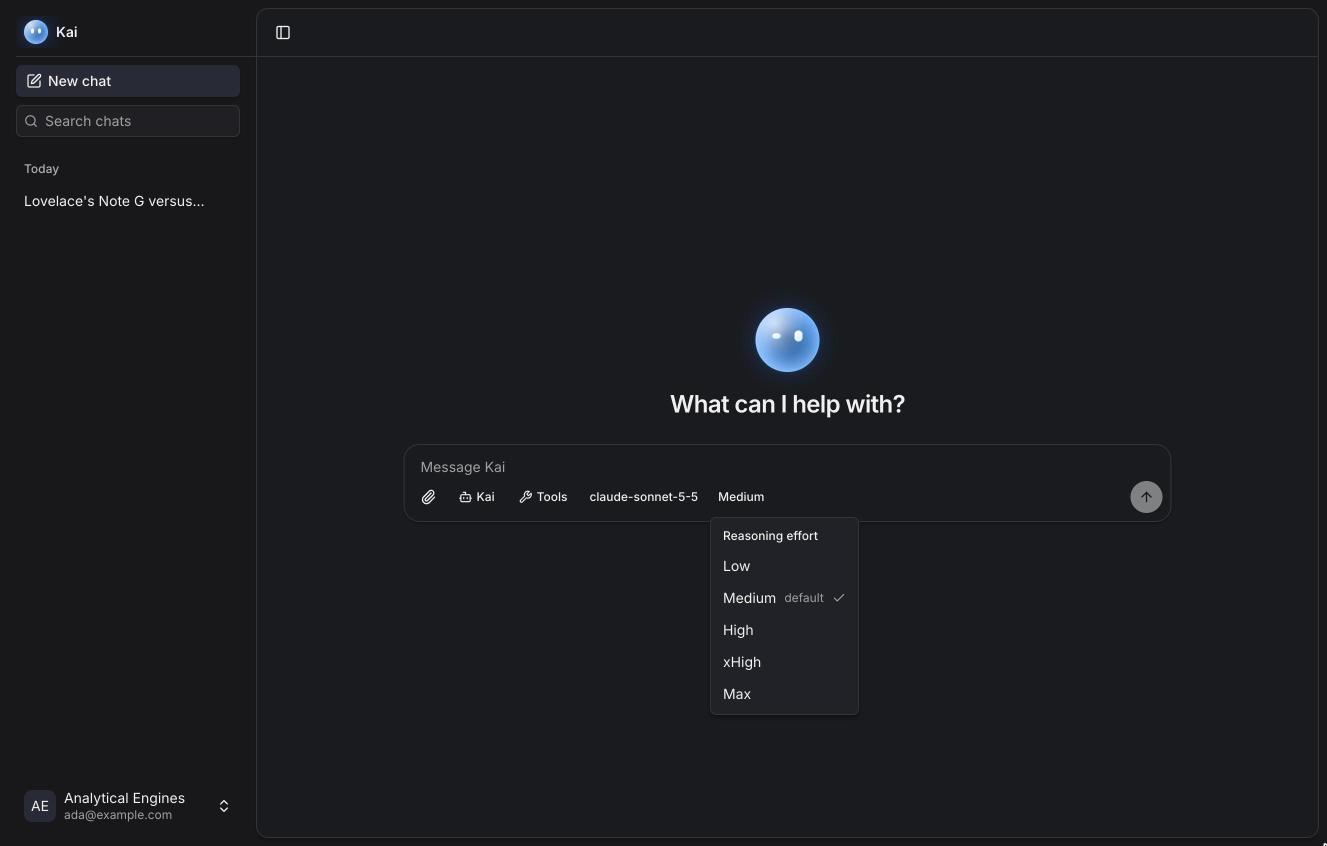
When a model reasons, a Thought line appears above the answer; open it to read the summary the provider returns.
Attachments
| Kind | Types | Up to |
|---|---|---|
| Images | PNG, JPEG, GIF, WebP | 10 MB. Larger than 2048 px on a side are scaled down. |
| PDFs | 30 MB | |
| Text | Plain text, Markdown, CSV, JSON, YAML, XML, code | 1 MB, UTF-8 |
Up to 10 files per message. Files go straight from your browser to the workspace's object storage; the model sees images and PDFs natively when it supports them, and text files as text.
Web search
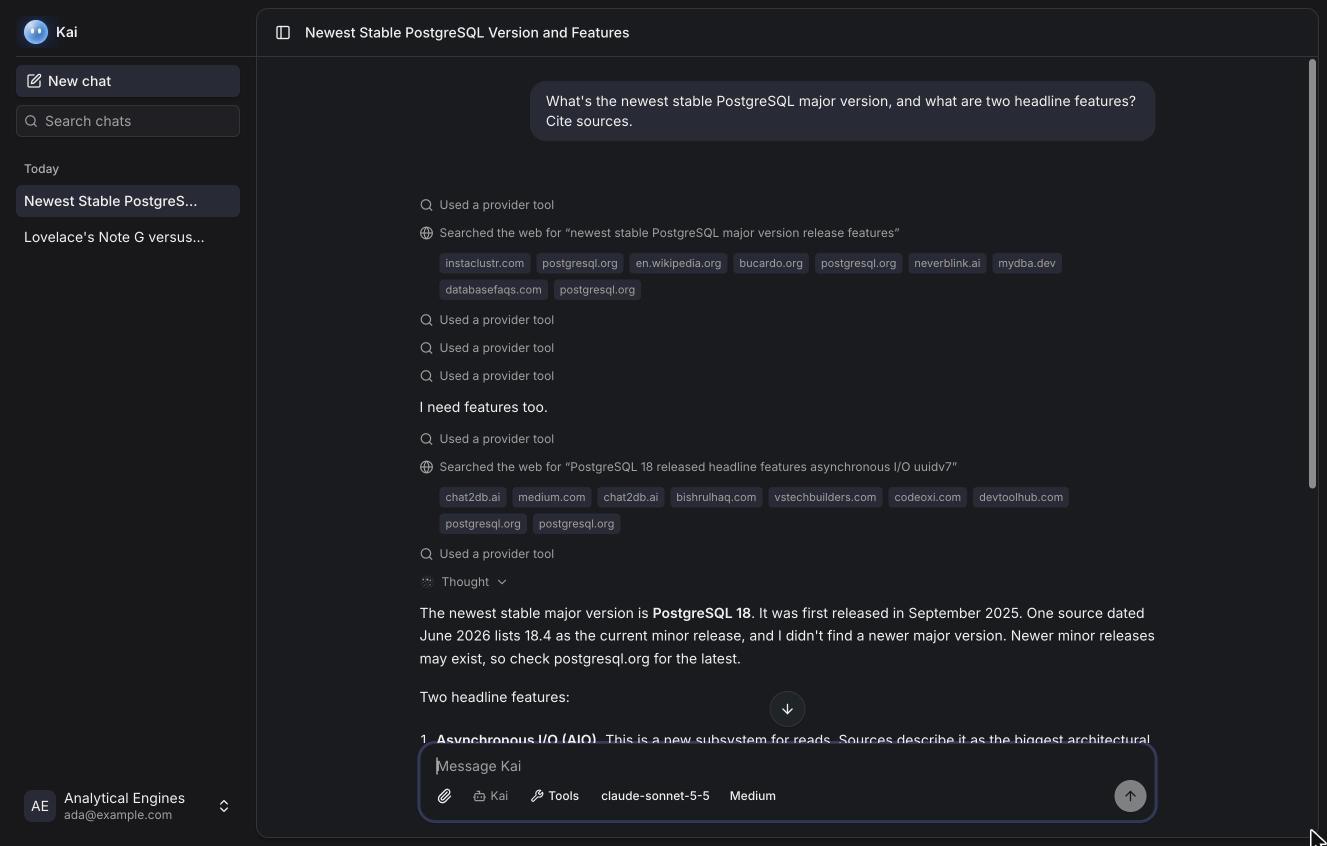
Models with a built-in web search tool use it on their own when a question needs fresh information. Kai shows each search and the sites it read, and the answer cites them. Workspace admins can turn web search off per key.
Tools in a chat
Open Tools to turn servers or tool groups on for this conversation. Each server shows whether it's connected and how many tools it offers; a server that needs you to sign in or fill in values says so, with a link.
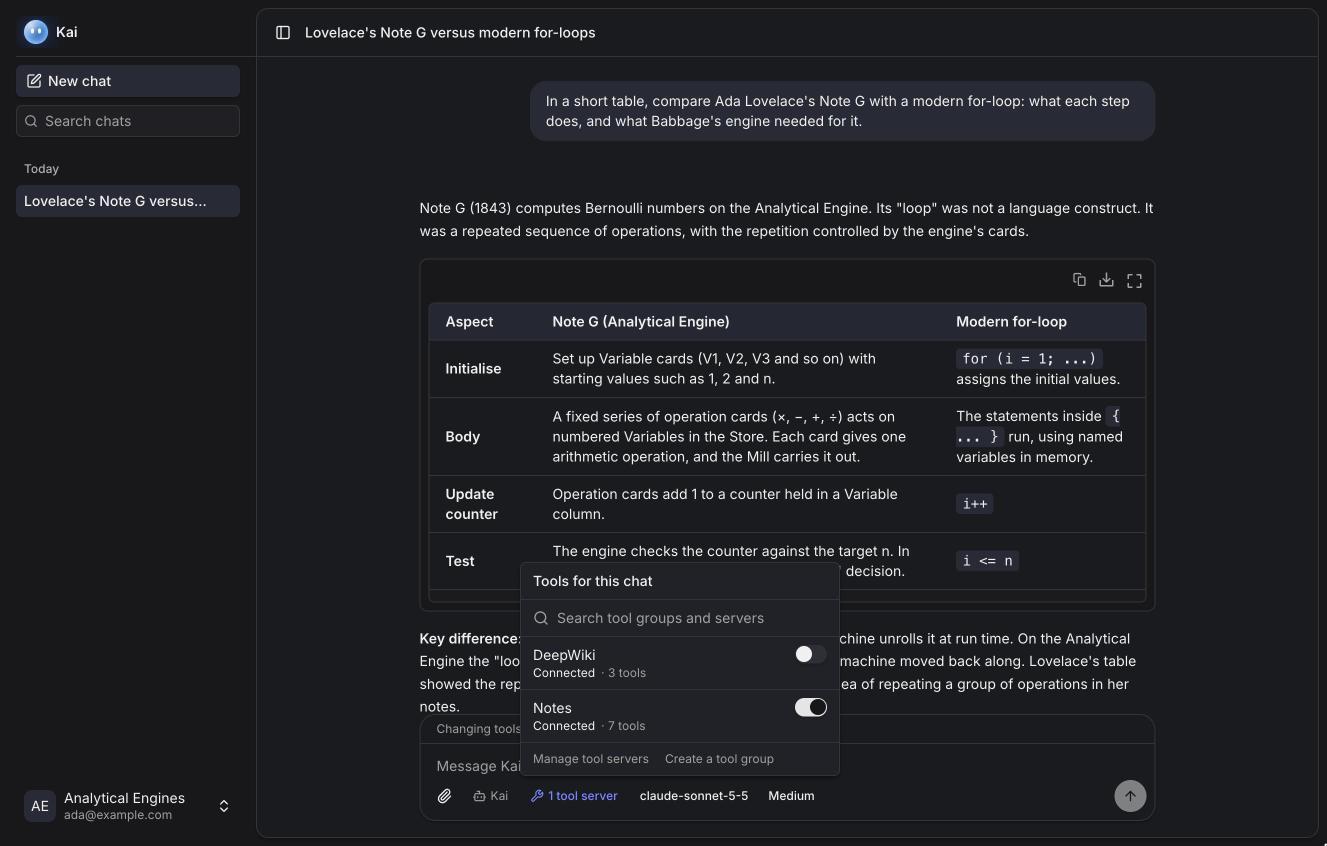
When the model calls a tool, the call appears as a card with its arguments and result. If the tool needs approval, the card asks first. See Tools and approvals.
Editing and regenerating
Hover a message to see its actions:
- Your messages: copy, or edit. Editing sends the new text as a new branch; the old one stays.
- Replies: copy, or regenerate. Regenerating asks again from the same point, as a new branch.
When a message has branches, arrows (‹ 1 / 2 ›) switch between them. The
reply shows which model wrote it.
Long conversations
Every model has a context limit. Kai tracks how full the conversation is and, once it passes half the threshold, shows a meter in the message box and a Summarize earlier messages now link above it.
When the conversation reaches the threshold (80% of the model's window, at most 160K tokens for Claude and 200K for GPT), Kai summarizes the earlier part before the next message. The summary replaces what came before for the model; you still see the whole conversation, with a marker where the summary starts.
Context management explains how the summary is made and what else Kai does to keep within a model's limits.
Your chats
The sidebar lists your chats by date. Search searches titles and message text. Each chat's menu can rename, archive or delete it. Chats are private: nobody else in the workspace can see them.
Titles are written by the workspace's utility model, or by the chat's own model at its lowest effort.
Keyboard shortcuts
| Keys | Action |
|---|---|
| Shift+O | New chat |
| ⌘B / Ctrl+B | Show or hide the sidebar |
| Enter | Send |
| Shift+Enter | New line |
When something goes wrong
- A reply stops with an error. The provider's message is shown under the reply, with Retry when retrying can help. Rate limits and overloaded providers are retried automatically first.
- "Model unavailable." The key or the model was turned off. Pick another model, or ask an admin.
- A reply was interrupted (the server restarted, or you pressed Stop). What arrived is kept; regenerate to try again.